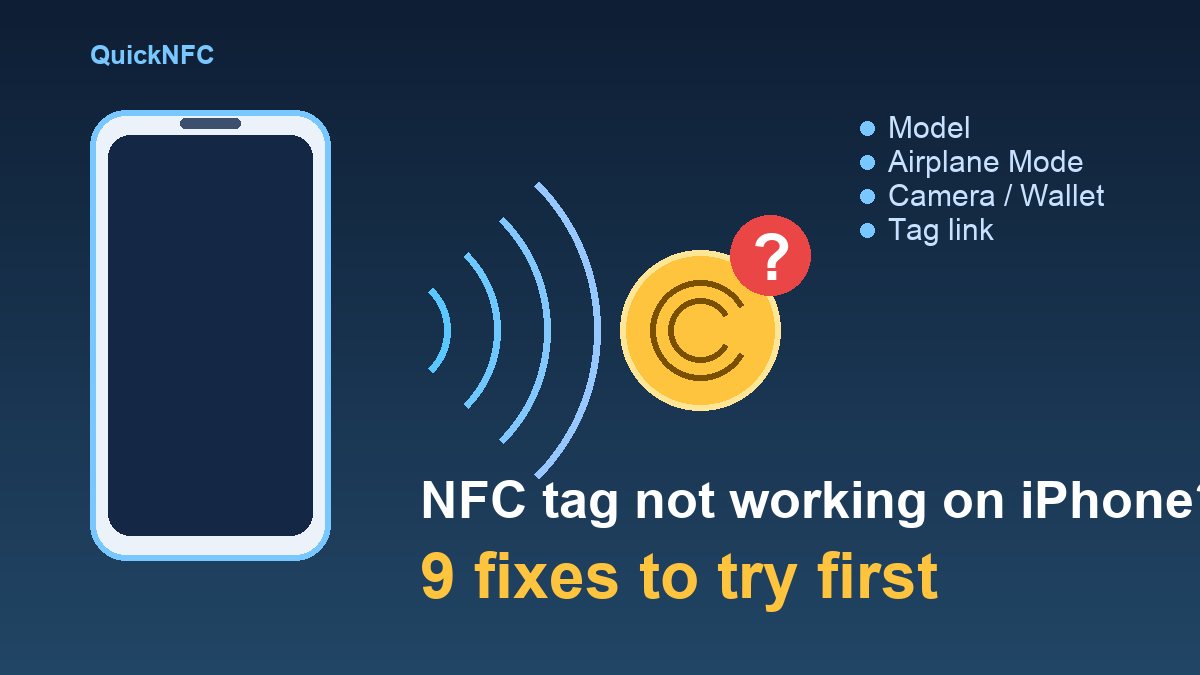
Short answer: when an iPhone ignores an NFC tag, it is usually one of four things: the model cannot read tags in the background, the phone is in a state where Apple switches background reading off (Airplane Mode, camera open, Wallet in use, or never unlocked since a restart), the tag does not contain the kind of link the iPhone looks for, or something is physically blocking the signal. The first three can be checked in a couple of minutes and cost nothing.
This guide is the iPhone counterpart to our Android NFC troubleshooting list. The rules are different on iPhone, because Apple decides what the system will read by itself and what needs an app.
1. Check that your iPhone reads tags on its own
According to Apple's developer documentation, background tag reading, where the system scans for tags without you opening an app, is supported on iPhone XS and later. On an older iPhone that has NFC, the phone will not react to a tap by itself. You need an app that starts its own scan, such as an NFC reader app. If you tap a tag with an older model and nothing happens, that is expected behaviour, not a fault.
2. Wake the screen and enter your passcode at least once
Apple says the system reads tags in the background only while the iPhone is in use, and lists situations where the display can be on but background reading is still unavailable. One is that the device has never been unlocked, which is the state of a phone that has just restarted and is waiting for its passcode. Turn the screen on, enter your passcode once, then tap again.
3. Turn off Airplane Mode
Airplane Mode is on Apple's list of situations where background tag reading is unavailable. If you use it at night or while travelling and then wonder why the bedside tag stopped working, this is the first thing to check. Swipe into Control Centre and make sure the aeroplane icon is not highlighted.
4. Close the camera and Wallet
Two more items on Apple's list: the camera is in use and Apple Pay Wallet is in use. A camera app left open in the background of a scan, or a Wallet card sitting on screen, can stop the tap from registering. Go to the Home Screen, close both, and try again. Apple also notes that background reading is not available while an app has its own NFC scan session open, so close any NFC reader app you were testing earlier.
5. Look for the pop-up and tap it
Background reading does not open the link silently. Apple describes the system showing a notification each time it reads a new tag; you tap that notification to continue, and if the phone is locked it asks you for your passcode or Face ID first. If you tapped the tag and "nothing happened", pull the screen down slowly and watch near the top for the banner. Reading the same tag again straight away may not show a new one, so move the phone away and try again after a moment.
6. Check what is actually written on the tag
This is the cause people miss. Apple's documentation says the system inspects the tag's NDEF message for a URI record, and if there is more than one it uses the first. A tag holding plain text, a Wi-Fi login or a contact card will not produce the same automatic pop-up. Test it:
- Open a free NFC reader app and scan the tag to see what it holds.
- If it is blank, or holds something other than a link, rewrite it with a single URL. Our guide on writing NFC tags without messing them up shows how.
- If it was written by another app, put the link you want first in the message.
7. Use a link type the iPhone supports
Apple says background reading handles website links (http and https), email, SMS, telephone, FaceTime, FaceTime Audio, Maps and HomeKit accessory setup links. It does not support custom URL schemes; Apple's advice to developers is to use universal links instead. A tag written with an app-specific address such as "myapp://" may therefore be ignored on its own. A normal web link is the safest choice. If there is no app tied to the link, Apple says the link opens in Safari.
8. Take off the case and move the tag off metal
This one is practical advice rather than an Apple rule. Thick cases, wallet cases with metal plates, magnetic ring holders and card wallets can all weaken the signal, and a standard sticker tag placed directly on metal often will not read at all. Test the phone without its case and place the tag on plastic, wood or glass. If you need to stick one on a metal surface, buy a tag made for metal; our best NFC tags to buy guide covers what to look for.
Also try different spots: hold the top edge of the phone against the tag and move it slowly. Where the reader sits varies by model, so a tap in the middle of the back may miss.
9. If a Shortcuts automation is the problem
If the tag reads but your Shortcuts automation does not run, the fault is in the shortcut rather than the tag. Re-scan the tag inside the NFC trigger, check whether it is set to ask for confirmation, and make sure the automation is switched on. Our walkthrough of NFC tag automations on iPhone with Shortcuts covers the setup, and our old credit card test shows a trigger that needs no writable tag at all.
Quick diagnosis
- Nothing at all, older iPhone: it may not read in the background. Use a reader app.
- Nothing just after a restart: enter your passcode once.
- Worked yesterday, not today: Airplane Mode, camera or Wallet.
- Phone reads other tags but not this one: the tag is blank, holds no link or uses a custom scheme.
- Works without the case: interference.
- Tag reads, shortcut does not run: the automation, not the tag.
When it still will not work
Try a second tag and a contactless card you know works on another phone. If a different tag reads fine, the first tag is faulty or wrongly written. If no tag reads on your iPhone and you have tried the steps above, restart the phone and update to the latest iOS. If that does not help, the NFC antenna may have a hardware fault and the phone is worth showing to Apple Support. Our common NFC mistakes list also covers errors that waste the most tags, and the iPhone vs Android NFC guide explains why the two platforms behave differently.
FAQ
Does my iPhone need an app to read an NFC tag?
Not on iPhone XS and later, which can read tags in the background, according to Apple. Older models with NFC need an app that starts the scan.
Why does my iPhone ignore a tag with text on it?
Apple's background reading looks for a URI record in the tag's NDEF message. Plain text or other record types are for apps to read, so the system does not show the usual pop-up.
Does the phone need to be unlocked?
It must be awake and in use. If it is locked, Apple says the system asks you to authenticate before it hands the tag data to an app. A phone that has never been unlocked since it restarted will not read tags in the background.
Can an NFC tag stop working over time?
Tags rarely wear out, but a crushed antenna, a tag stuck on metal or a rewritten, locked or corrupted message can make it look dead. Test with a second phone before replacing it.
Sources

QuickNFC Editorial DeskQuickNFC publishes practical, plain-English NFC guides. Spotted an error or something out of date? Tell us.