Short answer: on an iPhone XS or newer, open the Shortcuts app, create an automation with the NFC trigger, scan any NFC tag, give it a name, and add the actions you want. From then on, tapping the top of your unlocked iPhone on that tag runs those actions. The tag does not need to contain anything: Shortcuts only remembers the tag's unique ID, so a blank sticker works.
NFC automations are having a moment again. On 22 October 2026 How-To Geek described turning old bank cards into free NFC triggers for smart home routines, and MakeUseOf ran a piece the day before on the automation tools already built into phones. The idea behind both is simple and worth getting right: put a physical "button" somewhere in your home or office, tap your phone on it, and something useful happens. This guide covers the setup on current iOS versions, what to automate, and the problems people hit most often.
What you need
- An iPhone XS, XR or newer. Older models can read some tags inside apps, but the Shortcuts NFC trigger needs the newer NFC hardware. iPads have no NFC reader, so this is iPhone only.
- The Shortcuts app. It is built into iOS. If you deleted it, reinstall it free from the App Store.
- An NFC tag. A cheap NTAG213 sticker is plenty, because nothing is written to it. Keychain fobs, cards and on-metal tags work too. See our guide to which NFC tags to buy if you are choosing.
Apple's own documentation is clear on the key point: for the NFC trigger, "other than the unique identifier, the contents of the NFC tag are ignored." That is why you do not need a tag-writing app for this.
Step by step: create an NFC automation
Apple has reorganised the Shortcuts app a few times, so the exact labels depend on your iOS version. Both routes below end in the same place.
iOS 17, 18 and 26
- Open Shortcuts and tap the Automation tab at the bottom.
- Tap + in the top-right corner (or New Automation if this is your first one). Some versions show a "Create Personal Automation" step here; tap it if you see it.
- Scroll to NFC (or search for it) and tap it.
- Tap Scan, then hold the top edge of the back of your iPhone against the tag until it is detected.
- Give the tag a clear name such as "Desk" or "Front door". You will see this name later, so make it specific.
- Choose Run Immediately if you want the automation to run without a prompt, and decide whether you want a notification when it runs. Tap Next.
- Pick New Blank Automation (or an existing shortcut), add your actions, and tap Done.
iOS 27
In iOS 27 Apple attaches automations to shortcuts. Open an existing shortcut or create a new one with the actions you want, tap Edit, then Automation, and choose the NFC trigger to scan and name your tag. To let it run without asking, open the shortcut's info panel, go to Privacy and turn on Allow Running When Locked. Apple lists NFC among the triggers that can run automatically this way.
Whichever version you have, test it straight away: lock the phone, wake it again, then tap the tag. If nothing happens, jump to the troubleshooting section below.
Good first automations to build
The best NFC automations remove a small, repeated chore. A few that work well with Shortcuts' built-in actions:
- Desk focus: turn on a Focus mode, open your task app and start a 25-minute timer.
- Bedside: set a Focus or Do Not Disturb, lower the screen brightness and set your morning alarm.
- Car mount: open Maps with your commute, start a playlist and send a "leaving now" message to one contact.
- Front door: run a Home scene that switches lights off when you leave, if your accessories are in the Apple Home app.
- Kitchen: one tag per timer (tea, rice, pasta) so you never type a duration with wet hands.
- Water bottle or gym bag: log a glass of water to Health, or open your workout app and playlist.
For more room-by-room ideas, see our list of NFC tag uses at home. Start with one or two tags you will genuinely tap every day; a drawer full of forgotten stickers helps no one.
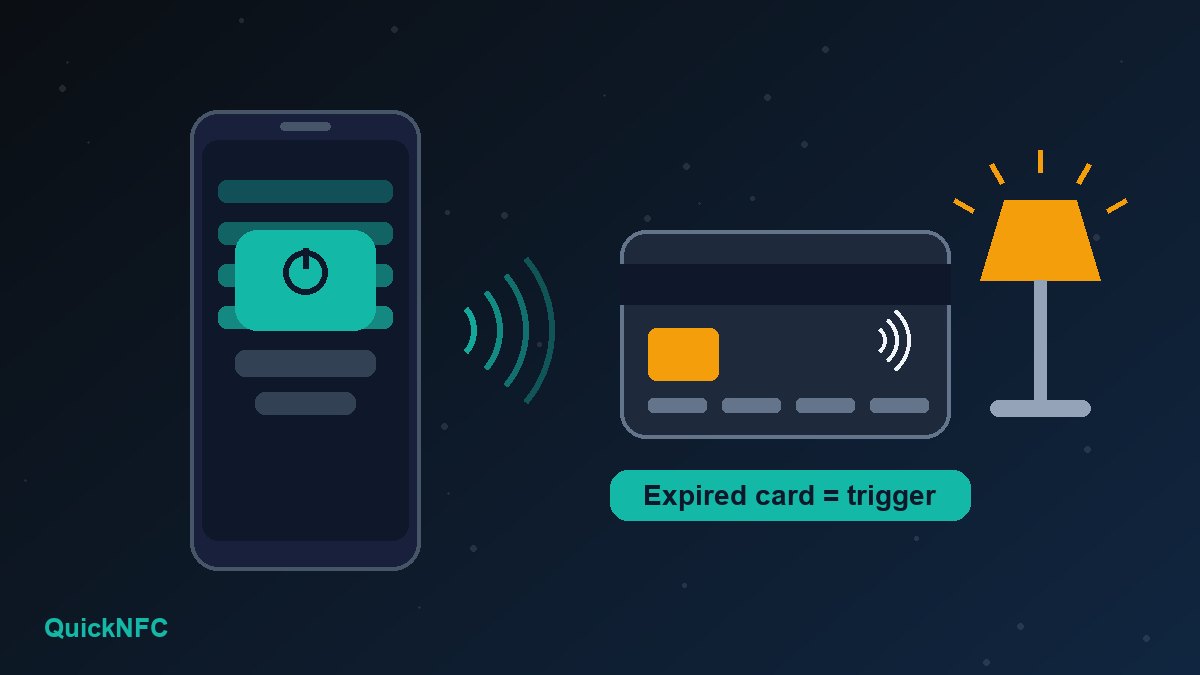
Can you use an old bank card or transit card?
Often, yes, because any NFC chip with a stable unique ID can act as the trigger. That is the idea behind the How-To Geek project. Three cautions before you try it:
- Only use cards that are expired or cancelled. Never stick a live payment card to a wall or desk.
- Some cards change their ID. Certain chips present a random identifier on each read for privacy. If the automation works once and then stops, that card is not usable as a trigger.
- Mind where the card lives. If the card sits in a wallet case right behind your phone, the automation can fire every time you pick the phone up. A thin sticker tag on a fixed surface avoids that.
Troubleshooting: when the tap does nothing
The phone is locked or the screen is off
NFC tag reading in iOS needs the iPhone awake, and in practice unlocked. Apple's developer documentation also notes that background tag reading is unavailable while the camera is in use, while Apple Pay is in use, in Airplane Mode, and on a phone that has not been unlocked since it restarted.
You are tapping the wrong spot
The iPhone's NFC antenna sits near the top edge of the back. Hold that area flat against the tag for a second rather than swiping past it.
Metal or a thick case is in the way
Standard tags stuck directly on metal (a fridge, a laptop, a metal desk frame) often fail. Use an on-metal tag, or move the sticker. Card-wallet cases and magnetic plates can block reads as well. Our list of common NFC mistakes covers placement in more detail.
A prompt appears instead of the automation running
On iOS 17 to 26, edit the automation and switch it to Run Immediately. On iOS 27, check the shortcut's Privacy setting described above. Apple also notes that some individual actions may need their own permission the first time they run.
Safari opens instead
If the tag already contains a web link, iOS may show a notification to open it. For automation tags, use a blank tag or a dedicated one rather than a tag that also carries a URL. If you write tags for other purposes, our guide to writing NFC tags properly explains how to keep them tidy.
Limits worth knowing
- The automation lives on your phone, not the tag. Apple says automations are specific to a device; they back up to iCloud but sync to other devices switched off. A family member tapping the same tag gets nothing unless they create their own automation.
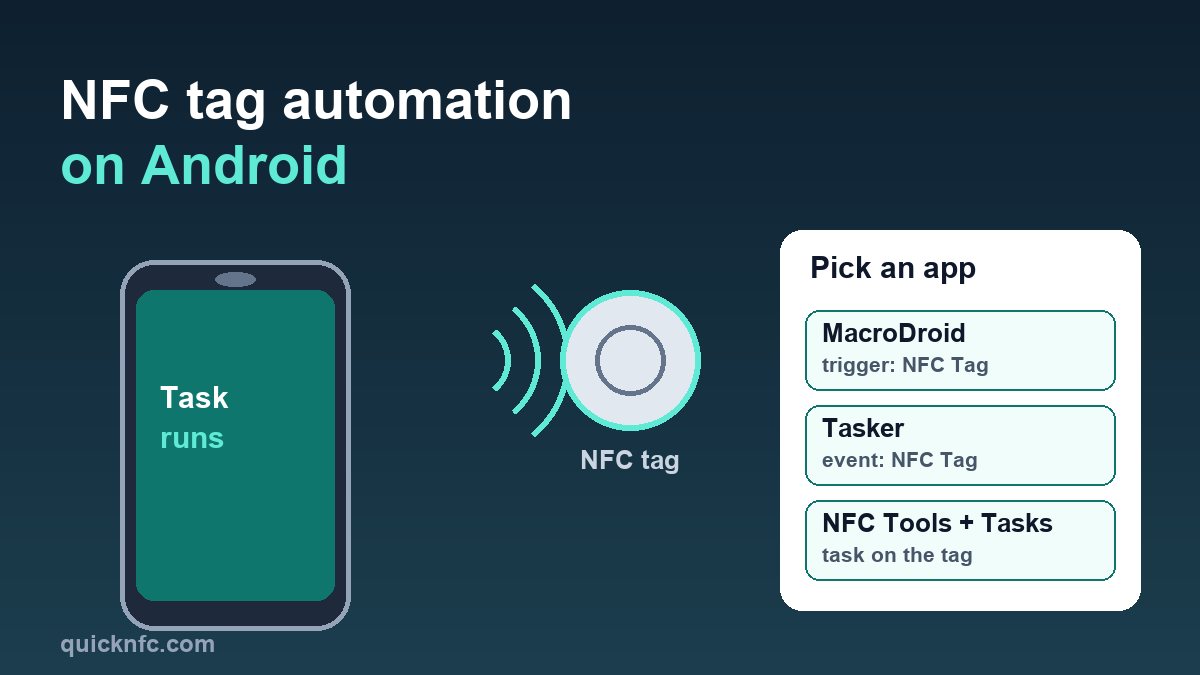
- Android works differently. Android phones usually rely on third-party apps for tag-triggered tasks. Our iPhone vs Android NFC guide explains the differences, and if an Android phone will not read tags at all, see our Android NFC fixes.
- Keep sensitive actions private. A tag in a shared space can be tapped by anyone holding your unlocked phone, so avoid automations that send money, share your location publicly or open anything important.
FAQ
Do I need to write anything to the NFC tag?
No. Shortcuts uses only the tag's unique identifier, so a blank, unformatted tag works fine.
Will it work with the iPhone locked?
Plan on getting past the lock screen first. The screen needs to be awake for tag reading, and iOS will not read tags at all until the phone has been unlocked once after a restart.
How many NFC automations can I have?
Apple does not publish a small fixed limit, so you can set up one per tag for every routine you use. Give each tag a distinct name so you can manage them in the Automation list.
Sources: Apple Shortcuts User Guide on support.apple.com: Setting triggers, Create a new personal automation (iOS 26) and Add automations (iOS 27); Apple Developer, Adding support for background tag reading; How-To Geek (22 October 2026) and MakeUseOf (21 October 2026).

QuickNFC Editorial DeskQuickNFC publishes practical, plain-English NFC guides. Spotted an error or something out of date? Tell us.