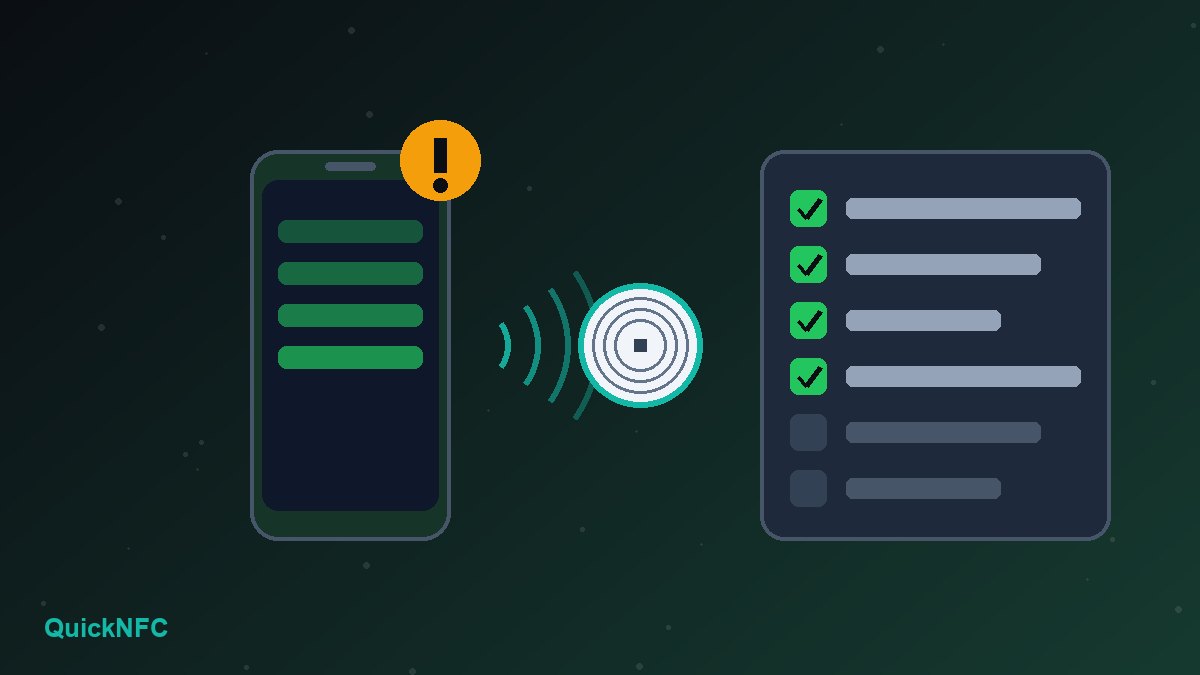
Short answer: when NFC stops working on an Android phone, the cause is usually one of five things: NFC is switched off, the screen is locked, you are tapping the wrong spot, something (a case, a metal plate or a card wallet) is blocking the signal, or the tag itself is blank, damaged or a type your phone cannot read. Work through the checks below in order. Most people find the problem within the first four.
The trick is to work out early whether the phone or the tag is at fault. Everything below is arranged so you can rule each one out quickly, without buying anything.
First: is it the phone or the tag?
Grab a second NFC item you know works: a contactless bank card, a transit card, or a tag that a friend's phone reads. Then:
- Your phone reads the known-good item but not your tag: the tag is the problem. Skip ahead to the tag checks.
- Your phone reads nothing at all: the phone, its settings or its case is the problem. Start with fix 1.
- Another phone reads your tag fine: that confirms the tag works and the issue sits with your phone.
A free reader app such as NXP TagInfo or NFC Tools makes this test clearer, because it shows whether the phone detected a chip at all, even when the tag holds nothing useful. Detection with no content points to the tag. No detection at all points to the phone, the position or the case.
Phone-side fixes
1. Check that your phone actually has NFC
Most mid-range and flagship Android phones have NFC, but some budget models, and some regional variants of otherwise NFC-capable phones, ship without it. Open Settings and search for "NFC". If nothing comes up, the hardware is probably missing, and no app can add it. The spec sheet on the manufacturer's site will confirm it either way.
2. Turn NFC on
The toggle moves around between brands. On Pixel and many stock-Android phones it sits under Settings > Connected devices > Connection preferences > NFC. On Samsung Galaxy phones it is under Settings > Connections > NFC and contactless payments. Many phones also offer an NFC tile in the quick settings panel. Updates and battery-saving modes can switch it off without you noticing, so check even if you are sure it was on.
3. Wake and open the screen
Android's own developer documentation says devices usually look for NFC tags only while the screen is unlocked. A phone sitting on the lock screen, or with the display off, will usually ignore a tag completely. Contactless payment is handled separately, which is why your phone may still pay at a till while refusing to read a sticker. Get past the lock screen first, then tap.
4. Find the antenna and hold still
NFC works over a few centimetres at most, and the antenna is a small coil in one area of the back. On most Android phones it sits around the middle or upper part of the back, often near the camera. Move the tag slowly across the back and hold it in place for a second or two when you get a response. Quick taps at the wrong spot are the most common reason people decide NFC "doesn't work". Our plain-English guide to how NFC works explains why distance matters so much.
5. Take the case off
Thin plastic and silicone cases are normally fine. Thick rugged cases, cases with metal plates for magnetic car mounts, magnetic ring holders and wallet cases with cards inside can weaken or block the signal. A bank card in a wallet case can also answer the reader first, so your phone sees the wrong chip. Test once with the phone bare. If it suddenly works, you have found your culprit.
6. Turn off extreme battery saver modes
Some manufacturers' strongest power-saving modes limit radios and background services. If NFC stopped working around the time you enabled a heavy battery saver, switch it off and test again.
7. Restart, update and check the default app
A restart clears a stuck NFC service more often than you would expect. After that, install any pending system update. Then think about apps: when an app is set to open a certain kind of tag, Android sends the tag to that app. If a tag-writing app is open in the foreground, it may grab the tag as well. Close NFC utility apps and try again. If one app keeps grabbing every tap, check its own settings for an NFC or tag-scanning option, or uninstall it if you no longer need it.
Tag-side fixes
8. Check whether the tag is empty
A brand-new tag usually holds nothing, so a tap appears to do nothing, or Android shows a message along the lines of "No supported app for this NFC tag". That is not a fault. The tag simply needs content written to it, such as a URL. Our guide to writing NFC tags without wasting them covers the steps, including why you should test before you lock a tag.
9. Watch out for MIFARE Classic tags
Some cheap tags and many older access cards use NXP's MIFARE Classic chip. Android's developer reference states that support for MIFARE Classic is optional on Android devices, and many phones cannot read or write these tags at all. Your phone may detect the card but fail to read its content. If you are buying tags for links, contact sharing or automations, pick NTAG213, NTAG215 or NTAG216 chips (NFC Forum Type 2), which almost every NFC phone handles. Our checklist of what matters before you order NFC tags explains the differences.
10. Rule out metal, damage and full memory
- Metal surfaces: a standard tag stuck directly on metal (a fridge, laptop lid or metal desk) usually will not read. Use an "on-metal" tag with a ferrite backing, or mount the tag on a spacer.
- Physical damage: the antenna inside a sticker is a thin foil coil. A crease, a cut or heat from a laminator can break it. If no phone detects the tag at all, replace it.
- Write errors: when writing fails, the data may be too large (an NTAG213 offers only 144 bytes of user memory), the tag may be locked as read-only, or the phone moved during the write. Shorten the URL, keep the phone still and check the lock status in a reader app.
If tap-to-pay is the problem, not tags
Payments go through a different path from tag reading. If tags read fine but contactless payment fails, check that NFC is on, that your wallet app (Google Wallet or your bank's app) is set as the default under the phone's contactless payment settings, and that your phone has a screen lock, which Google Wallet requires. If those all check out, your bank or the Google Wallet help pages are the right next step. A tag-troubleshooting guide cannot fix a card-provisioning issue.
When it is probably hardware
If NFC is on, the phone is unlocked and bare, a known-good card fails at several positions, and a restart and update change nothing, the NFC antenna or its connection may be damaged. This is more likely after a drop or a back-glass or battery replacement, because on many phones the NFC coil sits on or near the back panel. A warranty or authorised repair centre can test it. A factory reset rarely fixes a hardware fault, so back up your data and leave that as a last resort.
A quick checklist to keep
- Test a known-good card or tag to separate phone and tag problems.
- Confirm the phone has NFC and that it is switched on.
- Wake and open the screen before tapping.
- Move the tag slowly across the middle and upper back and hold it still.
- Remove the case, metal plates and wallet cards.
- Restart, update and close NFC utility apps.
- Check whether the tag is empty, a MIFARE Classic chip, on metal or damaged.
If you are setting up tags for other people to tap, such as a business card, a table stand or a home automation tag, a few planning choices prevent most of these problems before they happen. Our list of common NFC mistakes beginners make covers them, and the iPhone vs Android NFC guide explains what to expect when your audience uses both platforms.
Frequently asked questions
Why does my Android phone say "No supported app for this NFC tag"?
The phone read the tag but found no content it knows how to handle. Usually the tag is blank, or it holds data that only a specific app understands. Write a standard record, such as a URL, with a tag-writing app and it should open normally.
Can NFC work when my phone is locked?
For tags, usually not. Android devices typically scan for tags only while the screen is unlocked. Contactless payments follow their own rules set by the wallet app.
Does a phone case block NFC?
Thin cases rarely do. Thick, metal-backed and magnetic cases, and wallet cases holding cards, can block or confuse the read. Test without the case to be sure.
Sources
- Android Developers, NFC basics (tag dispatch system; scanning while the screen is unlocked)
- Android Developers reference, MifareClassic (optional support on Android devices)
- NXP Semiconductors, NTAG213/215/216 product data sheet (user memory sizes and lock bits)
- Google Wallet Help, contactless payment setup and screen lock requirement

QuickNFC Editorial DeskQuickNFC publishes practical, plain-English NFC guides. Spotted an error or something out of date? Tell us.