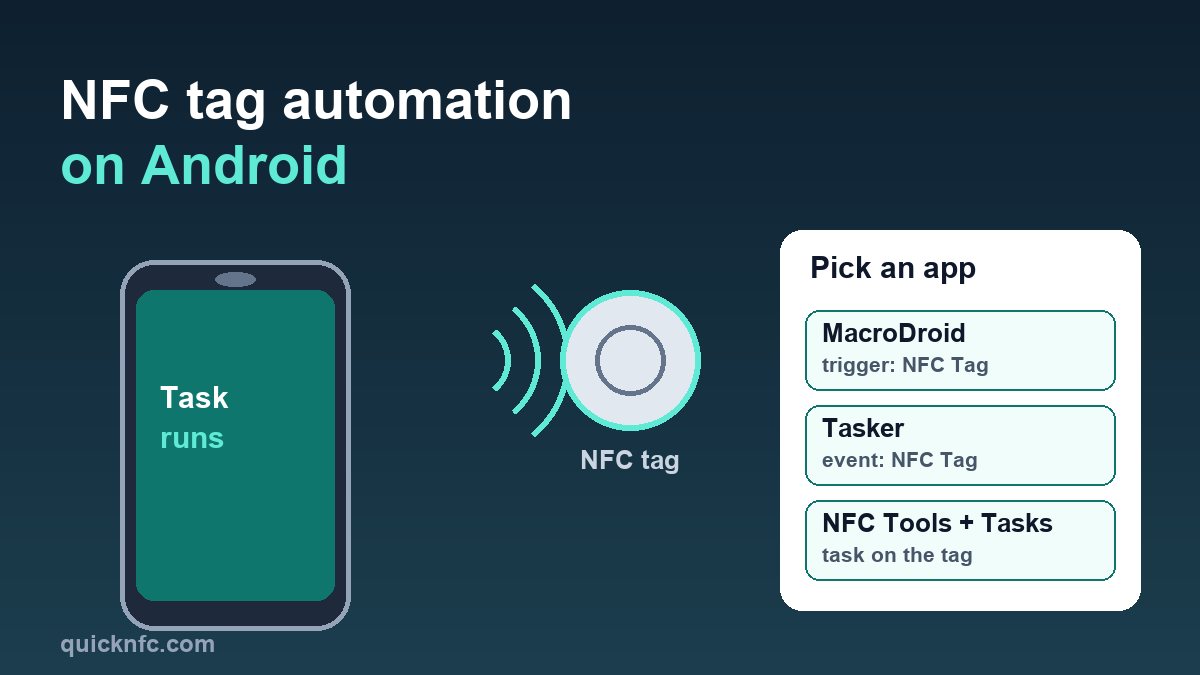
Short answer: Android has no built-in "tap a tag, run a routine" setting the way the iPhone has in Shortcuts, so you add a small automation app. The three common choices are MacroDroid, Tasker and NFC Tools with its NFC Tasks companion. You write or register a tag once, tell the app what to do when it sees that tag, and from then on a tap runs the task. Below: how each one works, how to pick, and what to do when the tap does nothing.
This guide is the Android partner to our iPhone NFC automation guide. If you do not own tags yet, start with which NFC tags to buy and how to write one safely.
How a tag tap reaches your automation app
Android's developer documentation describes a "tag dispatch system": the phone reads the tag, works out what kind of data is on it, and hands it to an app that has said it wants that kind of data. Android devices are usually looking for tags while the screen is unlocked, unless NFC is switched off in Settings. If more than one app wants the tag, Android shows a chooser, which is exactly what you do not want when you are trying to automate something with one tap.
Automation apps work by registering for tag scans and then matching the tag. Depending on the app they match on the tag's ID (a number built into the chip), on its content (what you wrote on it), or on both. That is why one blank sticker can run a different task from the one next to it.
Option 1: MacroDroid (the easiest start)
MacroDroid builds automations from three blocks: a trigger, actions and optional constraints. Its NFC trigger is under the device events. A typical setup, as described in community walkthroughs of the app:
- Create a new macro and add a trigger. Choose Device Events, then NFC Tag.
- Pick Write New Tag, give the tag a name inside MacroDroid (for example "Desk") and hold the phone against the tag when asked.
- Add the actions you want, such as opening an app, changing the ringer mode or sending a notification.
- Save the macro, then tap the tag to test it.
MacroDroid has a free version with a limit on how many macros you can keep, so check the current plan details on its Google Play page before you build ten of them.
Option 2: Tasker (the most control)
Tasker is a paid app with a steeper learning curve and far more actions. Its documentation says the NFC Tag event "allows you to react to a scanned NFC tag" and that you can react by ID, by content or by both. The ID option is useful for tags you did not write yourself: the documentation's own example is an old key card with an NFC chip that you can react to by its ID.
The basic path is: create a new Event profile, search for NFC, use the magnifying glass to scan your tag, then attach a task. One tip straight from the Tasker documentation: if some tags always make you choose an app, disable the system app that also handles tags (usually called Tags) so Tasker is used by default. Doing that changes how every tag opens on your phone, so only do it if the chooser really is in your way.
Option 3: NFC Tools and NFC Tasks (no macro building)
NFC Tools, by Wakdev, reads and writes tags. Its NFC Tasks companion app is described on Google Play as the app that runs the tasks you have previously recorded on your tags. So the task lives on the tag itself: you write a "turn on Bluetooth and open Maps" task in NFC Tools, and NFC Tasks carries it out whenever that tag is tapped. It suits a quick one-off. It is less flexible than MacroDroid or Tasker if you want conditions such as "only after 6 pm".
Which one should you pick?
- One or two simple tags (silent mode at the desk, open a note app): NFC Tools with NFC Tasks, or MacroDroid.
- Several tags with conditions (different action by time, Wi-Fi or location): MacroDroid or Tasker.
- Reusing cards you cannot rewrite (an old key card, a transit card): Tasker's react-by-ID option.
Whichever you choose, one tag per job works best, with the tag stuck where the job happens: the desk, the car dashboard, the nightstand. For ideas see the best NFC tag uses at home.
A change that affects link tags (Android 16 and 17)
Many people write a web address to a tag and expect an automation app to catch it. Android's developer documentation says that, starting in Android 16, scanning a tag that stores a web link (an http:// or https:// address) triggers the standard "view this link" action instead of the older tag-discovered one, and that, beginning with Android 17, such a scan shows an "open link" notification that needs a tap before the link opens.
For automation that has a practical meaning: a plain web-link tag is a poor trigger on newer Android versions, because the phone treats it as a link to open rather than a tag to act on. If you are building automations, write a text or app-specific record instead, or match on the tag ID, and keep web-link tags for what they do best (see the Google review card setup). Test on your own phone after a system update, since behaviour can change between versions.
If tapping does nothing
- NFC on and screen unlocked? Android usually looks for tags only while the screen is unlocked.
- Right spot on the phone. The NFC antenna is usually near the back, upper half of the phone, but it varies by model. Move slowly rather than pressing hard.
- Case or metal. A thick case, a wallet card or a metal surface behind the tag can block the signal. Metal-backed ("on-metal") tags exist for that.
- A chooser keeps appearing. Another app is also claiming tags. Set a default or, in Tasker, disable the system Tags app as described above.
- Battery optimisation. Some phones stop background apps. If a macro never fires, check the app's battery setting. This is a general Android behaviour and it differs by brand.
- Action blocked. Some system toggles are restricted on newer Android versions, so test each action on its own before blaming the tag.
More phone-side fixes are in NFC not working on Android.
Safety: do not use a tag tap as a lock
A tag ID is not a secret, and a tag you can read can usually be copied. Use tags for convenience tasks (modes, shortcuts, notes), not for anything that grants access or moves money. For that, see why tap to pay is a different thing.
Quick FAQ
Do I need a paid app?
Not necessarily. MacroDroid has a free version with limits, and NFC Tools is built to read and write tags. Tasker is a paid app. Check each listing for the current price and limits.
Which tag chip should I use?
Any common NTAG sticker works for a simple trigger. If you plan to store a longer record, see NTAG213 vs NTAG215 vs NTAG216.
Can the same tag run different things on iPhone and Android?
Not with one automation. iPhone Shortcuts and Android apps are set up separately. A plain text or link record can be read by both, but each phone's automation app has to be configured by its own owner.
Sources
- Android Developers, NFC basics (tag dispatch system; Android 16 and 17 note on web-link tags)
- Tasker user guide, NFC Tag event
- Wakdev, NFC Tools for Android and NFC Tasks on Google Play
- MacroDroid, macrodroid.com; Shelpful, NFC tag setup guide (MacroDroid trigger steps)

QuickNFC Editorial DeskQuickNFC publishes practical, plain-English NFC guides. Spotted an error or something out of date? Tell us.