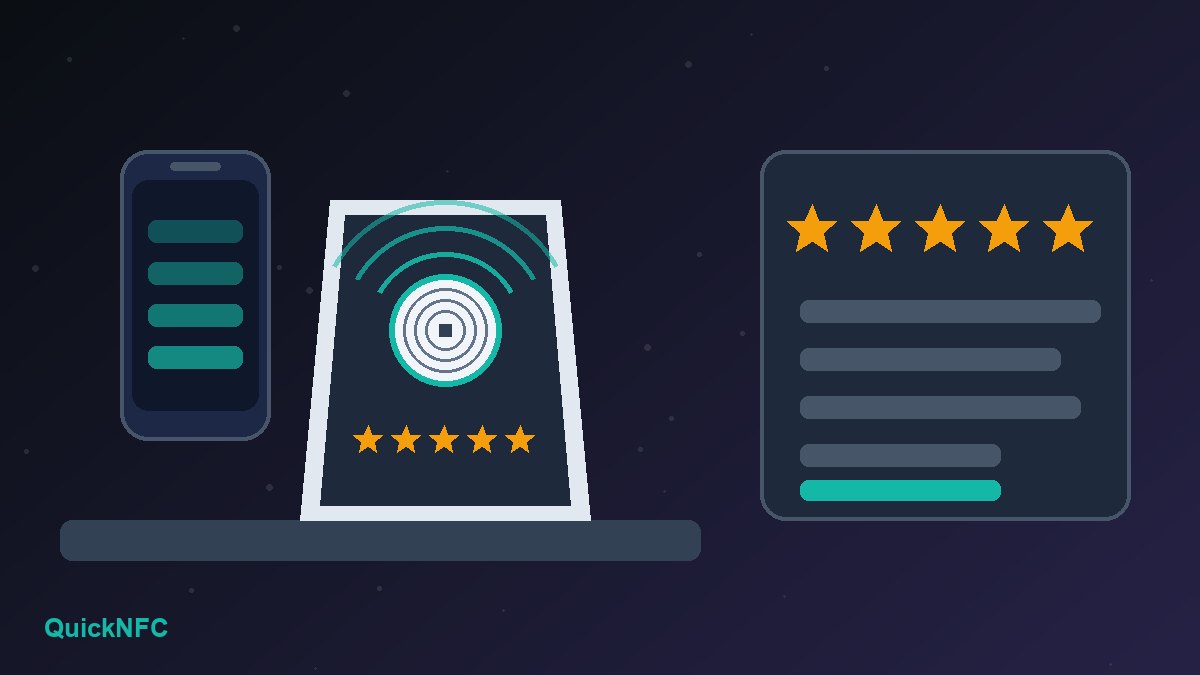
Short answer: an NFC Google review card or stand holds one thing: the link to your business's Google review form. A customer taps the top of their phone on it, the link opens, and they can leave a star rating and a few words without searching for you on Maps. You can buy one pre-programmed, or make your own in about ten minutes by copying the review link from your Google Business Profile and writing it to a blank NFC tag.
The tap is the easy part. What decides whether a review card helps or hurts is where you put it, what link is on it, and how you ask. Google's review rules are strict about incentives and about only inviting happy customers, and some ready-made cards are built around exactly those tricks. This guide covers how the cards work, how to set one up properly, and the mistakes that get reviews removed.
How an NFC review card works
Inside every card, sticker or acrylic stand is a small NFC chip with an antenna. The chip stores a short web address as a standard NFC record. When a phone with NFC switched on comes within a few centimetres, it powers the chip, reads the address and offers to open it. No app is needed on most modern phones.
- iPhone: iPhone XS and newer read NFC tags in the background while the screen is on, and show a notification you tap to open the link. Older models from iPhone 7 to X need the NFC Tag Reader button in Control Center.
- Android: most phones with NFC read the link as soon as the screen is unlocked, provided NFC is turned on in Settings. Some budget models have no NFC at all.
The card itself holds no account, no data about the customer and no battery. It is simply a faster way to deliver a link. If you are new to the technology, our explainer on what NFC is and how it works covers the basics.
Card, stand or sticker: which format fits
- Counter stand. A small acrylic or wooden stand by the till or reception desk. It suits cafés, salons, clinics and shops where customers pay in person. It is visible to everyone and never leaves the building.
- Handheld card. A card the size of a credit card that staff can hand over after a job, or that you leave on a restaurant table with the bill. It suits tradespeople, delivery drivers and home-service teams who finish the job away from a counter.
- Table or wall sticker. The cheapest option. A round sticker on each table, a menu holder or a waiting-room wall works well where people sit for a while.
Whichever you pick, choose one with a printed QR code as well. Some customers have NFC switched off, own a phone without it, or simply do not know what the tap symbol means. Google lets you download a ready-made QR code for your review link, so you can print both on the same surface.
Step 1: get your Google review link
Google has an official tool for this, and it is the only link you should put on the card. According to Google's Business Profile help page on review links, the review QR code can currently be generated only in a computer browser, not on mobile.
- Sign in to the Google account that manages your business and open your Business Profile (searching for your business name on Google shows it).
- Select Read reviews, then Get more reviews.
- Select Copy to copy the review link.
- To get the QR code as well, right-click it and choose Save image as.
Before going further, open the copied link on your own phone in a private browser window. It should open your business with the review box ready. If it shows the wrong location, you probably copied it from the wrong profile, which happens often with multi-branch businesses.
Step 2: write the link to the tag
Skip this step if you bought a pre-programmed card, but read the section on ready-made cards below first.
- Install a free tag-writing app such as NFC Tools on iPhone or Android.
- Choose Write, then Add a record, then URL / URI, and paste your review link.
- Tap Write and hold the top of an iPhone, or the middle of the back of most Android phones, against the tag until the app confirms.
- Test the tag with at least one iPhone and one Android phone, unlocked and with the screen on.
- Only when it works on both, consider locking the tag with the app's lock option so nobody can overwrite it. Locking is permanent, so the link can never be changed again.
A review link is short, so the most common chip, NTAG213 with 144 bytes of user memory, has plenty of room. Our guide to choosing NFC tags explains the chip types, and how to write NFC tags without messing them up covers the record settings in more detail.
One practical warning: NFC and metal do not mix. A standard sticker placed directly on a metal counter, card terminal or fridge will often not read at all. Use a stand, put a spacer underneath, or buy tags labelled on-metal or anti-metal.
Ready-made review cards: check what link is inside
Many pre-programmed cards do not contain your Google link. They contain a link to the seller's own server, which then forwards customers to Google. That can be convenient, because the seller can change the destination later, but it brings three risks:
- The card depends on the seller. If their service closes or your subscription lapses, every card you printed may stop working or point somewhere you did not choose.
- Extra steps lose people. A slow redirect page or a cookie banner before Google loads gives customers a reason to give up.
- Some redirects filter customers. A few products first ask "How was your visit?" and send only happy customers to Google while routing unhappy ones to a private form. That is review gating, and Google's rules forbid it (see below).
To see what a card contains, read it with NFC Tools before you put it out. If the address is not your Google review link, or a redirect on your own domain that you control, ask the seller to change it or write your own card instead.
Stay inside Google's review rules
Google's Maps user-contributed content policy allows businesses to ask for reviews that reflect a genuine experience. It does not allow merchants to:
- offer incentives such as payment, discounts or free items in exchange for a review, or for changing or removing a negative one;
- discourage or prohibit negative reviews, or selectively ask only satisfied customers;
- require or pressure people to write reviews while they are on the premises, or ask them to include specific content, such as a staff member's name.
That last point matters for stands at the till. A stand that quietly invites a review is fine. A staff member hovering until the customer has posted five stars is not, and nor is a staff target for a set number of reviews. Reviews that break these rules can be removed, and Google can restrict profiles involved in fake engagement.
In the United States there is a legal layer as well. The Federal Trade Commission's final rule on consumer reviews, announced on 14 August 2024, bans incentives that are conditioned on a review being positive or negative, and bans using threats or intimidation to suppress negative reviews. So skip the "free coffee for a 5-star review" sign entirely, whichever country you are in.
Placement and wording that get more taps
- Ask at the right moment. Put the card where the experience ends: beside the payment terminal, in the bill folder, on the reception desk at checkout, or in the hand of the technician when the job is done.
- Say what to do. "Tap your phone here or scan to review us on Google" works better than a logo on its own. Many customers still do not recognise the NFC symbol.
- Mark the sweet spot. Print a small target where the chip sits so people know where to tap.
- Keep the ask neutral. "We'd love your honest feedback" is within the rules. "Please give us 5 stars" is the kind of steering Google warns against.
- Remember the Google account. Google notes that customers must be signed in to a Google account to post a review, so someone who is not signed in will be asked to log in first.
Review cards work best as one part of a wider tap-to-act setup. Our guide to NFC for small business marketing covers menus, loyalty and lead capture, and whether NFC business cards are worth it looks at the personal-card side.
When the tap does nothing
- Phone locked or screen off: both iPhone and Android need the screen awake, and usually unlocked.
- NFC off on Android: it is a toggle in Settings or quick settings. Our Android NFC fixes walk through the rest.
- Wrong spot: the reader sits near the top edge on iPhones and in the middle of the back on most Android phones. Thick or metal-backed cases also block it.
- Tag on metal or damaged: re-test it away from the surface; if it reads there, switch to an on-metal tag.
More pitfalls, from blank records to tags hidden under thick laminate, are in our list of common NFC mistakes.
FAQ
Do customers need an app to use an NFC review card?
No. Recent iPhones and most Android phones open NFC links without an app. They do need NFC switched on and, to post the review, a signed-in Google account.
Can I put the review link on my existing NFC business card?
A tag holds one main link, so you would replace your contact link. A better option is to keep your contact card as it is and use a separate card or sticker for reviews.
Is it allowed to show review cards at the counter?
Yes. Google allows businesses to invite genuine reviews. It is the incentives, the filtering of unhappy customers and pressure on the premises that break the rules.
What happens if my business moves or rebrands?
The review link belongs to your Business Profile, so updating the address or name on the same profile should not change it. Test a tag after any change, and if you ever create a new profile, write the new link to your tags. That is one reason not to lock them too early.
Sources: Google Business Profile Help, Create a Google link or QR code to request reviews and Tips to get more reviews; Google Maps, Prohibited and restricted content; Federal Trade Commission, Trade Regulation Rule on the Use of Consumer Reviews and Testimonials (Federal Register, 22 August 2024); Apple Developer, Adding support for background tag reading.

QuickNFC Editorial DeskQuickNFC publishes practical, plain-English NFC guides. Spotted an error or something out of date? Tell us.