Short answer: most digital business cards do not carry your contact details at all. The NFC chip or QR code holds a short web link. When someone taps or scans it, their phone opens that link, which leads to a profile page with a "Save contact" button that downloads a standard contact file (a vCard). Everything else, from the plastic or metal card to the companion app, is packaging around that one link.
That simple design explains almost everything about how these cards behave: why they work on phones without an app, why you can change your details after printing, and why a card can suddenly stop working if the service hosting your profile disappears. Here is the full picture.
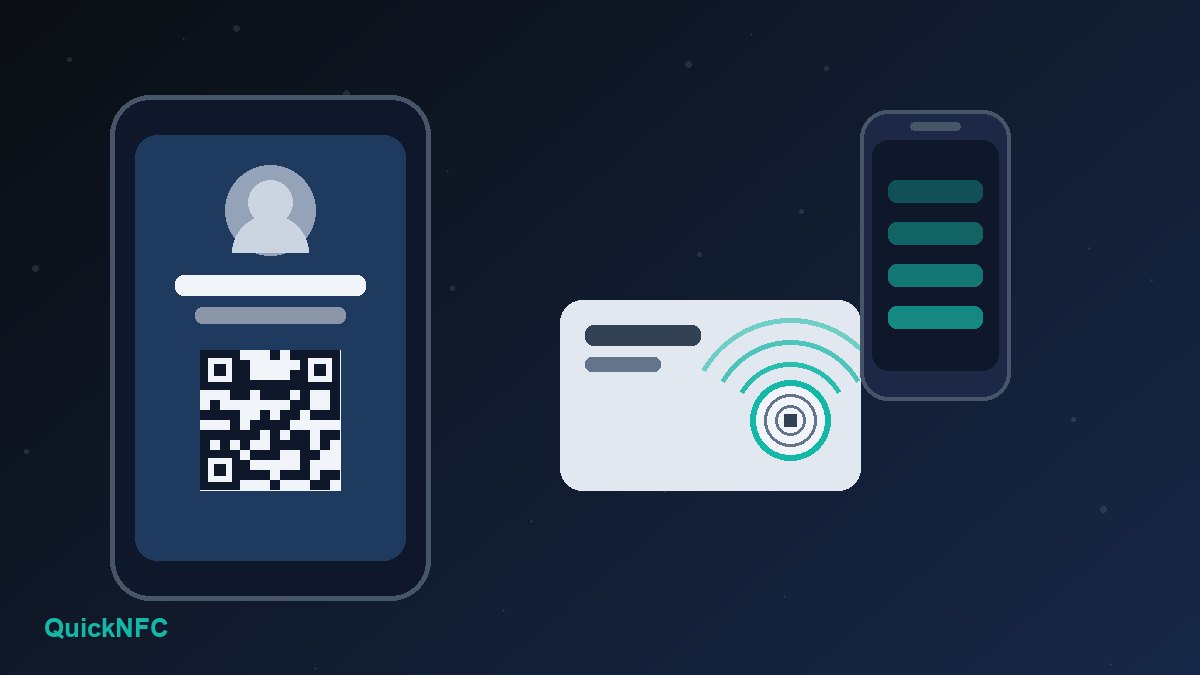
The three parts of every digital business card
- The trigger: an NFC chip, a QR code, or both, on a card, sticker, phone case or badge.
- The link: a short URL stored in the chip or encoded in the QR code.
- The destination: a profile page (or a direct contact file) with your name, role, phone, email, website and social links.
Cards differ in materials and price, but the flow is nearly identical across brands. Once you see it as trigger, link, destination, comparing products gets much easier.
What happens during an NFC tap
NFC (Near Field Communication) works at 13.56 MHz over a very short distance, usually a few centimetres. The chip inside the card has no battery. When a phone's NFC reader comes close, its field powers the chip just long enough for the phone to read what is stored on it. If you want the underlying basics first, our guide to what NFC is and how it works covers them.
On a business card, that stored data is normally a single NDEF record (the standard NFC data format) containing a URL. Step by step:
- The other person holds their phone near your card. The NFC antenna sits near the top edge on iPhones and usually around the middle of the back on Android phones.
- The phone reads the URL record from the chip.
- It shows a notification or banner offering to open the link. Nothing is saved automatically.
- They tap the banner, the browser opens your profile, and they press "Save contact" or follow one of your links.
Two compatibility details matter. On iPhone, background tag reading (reading a tag without opening an app first) works on iPhone XS and later; iPhone 7 to iPhone X need the NFC Tag Reader control in Control Center. Apple also notes that background reading pauses while the camera or Apple Pay Wallet is in use, and a locked iPhone asks to be unlocked before it hands over the link. On Android, NFC must be switched on, and phones normally look for tags only while the screen is on and unlocked. Our iPhone vs Android NFC guide goes deeper on the platform differences.
Why the chip stores a link, not your whole contact
Card chips have very little memory. The common NXP NTAG21x chips offer 144 bytes of user memory (NTAG213), 504 bytes (NTAG215) or 888 bytes (NTAG216). A short URL fits easily. A full contact with several phone numbers, an address and social links often does not fit on the smaller chips, and once it is written, changing it means rewriting the chip. A link lets you update the profile page at any time without touching the card.
You can write a contact (vCard) directly to a tag. It works with no internet connection, but you give up easy updates and the experience varies more between phones. For most people, the link approach is the better default.
What happens during a QR scan
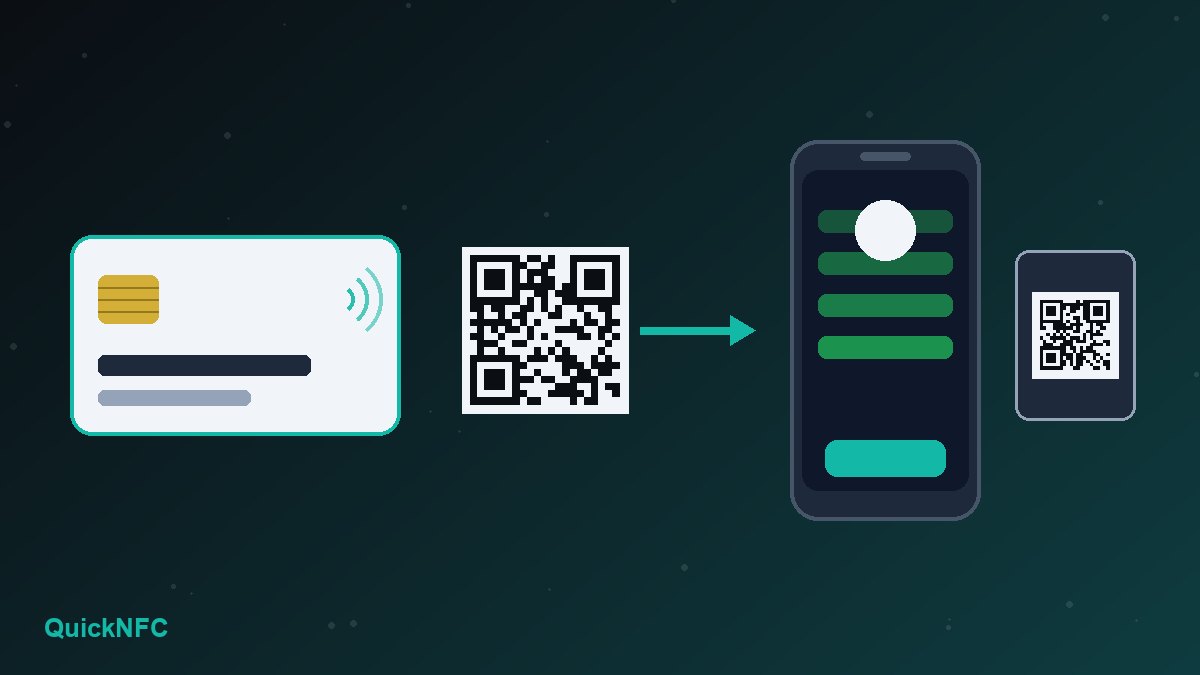
A QR code on a card usually encodes the same URL. The difference is the reader: a QR code needs the camera and a clear line of sight, while NFC needs only proximity. The iPhone Camera app has recognised QR codes since iOS 11, and Android phones read them through the camera app or Google Lens.
That makes QR the universal fallback. Some phones have NFC turned off, some cases get in the way, and some people simply do not know to tap. A small QR code printed on the back of an NFC card covers all of those situations at almost no extra cost. We weigh the two approaches in Are NFC business cards worth it?
Where wallet passes fit in
Some digital card apps let you add your card to Apple Wallet or Google Wallet. In most cases that pass is simply a convenient way to show a QR code quickly: you open the pass, the other person scans it, and the same profile page opens. It is handy when you forget the physical card, but it is still the QR method underneath, so do not expect another phone to read it by tapping.
The destination: profile page or contact file
The link can point to one of two things:
- A hosted profile page. A mobile web page with your details, buttons and a "Save contact" download. It is easy to update, can include a photo, portfolio or booking link, and many services show simple tap and scan counts.
- A direct .vcf file. The vCard format (defined in RFC 6350) is understood by the contacts apps on iPhone and Android. Linking straight to a .vcf skips the profile page and opens the "add contact" screen, but you cannot design it the way you can a page.
Either way, your details only end up in someone's phone when they choose to save them. That is a feature, not a flaw: nobody's address book is written to without their say.
How to set one up so it keeps working
The most common long-term failure is not a broken chip. It is a dead link: the profile service shuts down, changes its URL format, or switches your page off when a subscription lapses. These steps avoid that:
- Use a link you control. If you own a domain, point the card at an address on it (for example
yourdomain.com/card) and redirect that to whichever profile service you use. You can switch services later without reprinting anything. - Keep the URL short. Short links fit any chip and make the QR code less dense, so it scans faster and from further away.
- Write and test before you lock. NTAG21x chips can be locked permanently so nobody can overwrite them. That is sensible for cards you hand out, but only after you have tested the final link on both an iPhone and an Android phone. Our guide to writing NFC tags without wasting them walks through the process.
- Add the QR code too. Print it on the back with a short line such as "Tap or scan to save my contact".
- Check the profile on mobile data. A heavy profile page that crawls on busy event Wi-Fi undermines the whole point of a quick tap.
Common problems and quick fixes
- Nothing happens on tap: on Android, check that NFC is on and the phone is unlocked; on an iPhone 7 to X, open NFC Tag Reader in Control Center. Close the camera if it is open, then try the other position: top edge for iPhone, centre of the back for most Android phones.
- Works for some phones but not others: thick or magnetic cases can block the read. Ask the person to try without the case, or use the QR code.
- Metal cards read poorly: metal interferes with NFC, so metal cards need a specially designed chip area. A very short read range on a metal card is usually down to the design rather than a fault.
- The link opens an error page: the profile service changed or expired. If you used your own redirect, fix it once and every card you have handed out works again.
Is a digital business card the right choice?
If you meet people in person regularly and your details change now and then, a link-based NFC card with a QR fallback is genuinely practical: one card, always current, no retyping. If you rarely network face to face, a QR code in your email signature and on your phone may be all you need. Either way, the setup decisions above matter more than the material the card is made of.
Planning to buy blank cards or tags and program them yourself? Start with our checklist of what matters before you order NFC tags.
Sources
- NXP Semiconductors, NTAG213/215/216 product data sheet (user memory sizes and lock bits)
- Apple Developer documentation, Adding Support for Background Tag Reading
- Android Developers, NFC basics (tag dispatch)
- IETF, RFC 6350: vCard Format Specification

QuickNFC Editorial DeskQuickNFC publishes practical, plain-English NFC guides. Spotted an error or something out of date? Tell us.