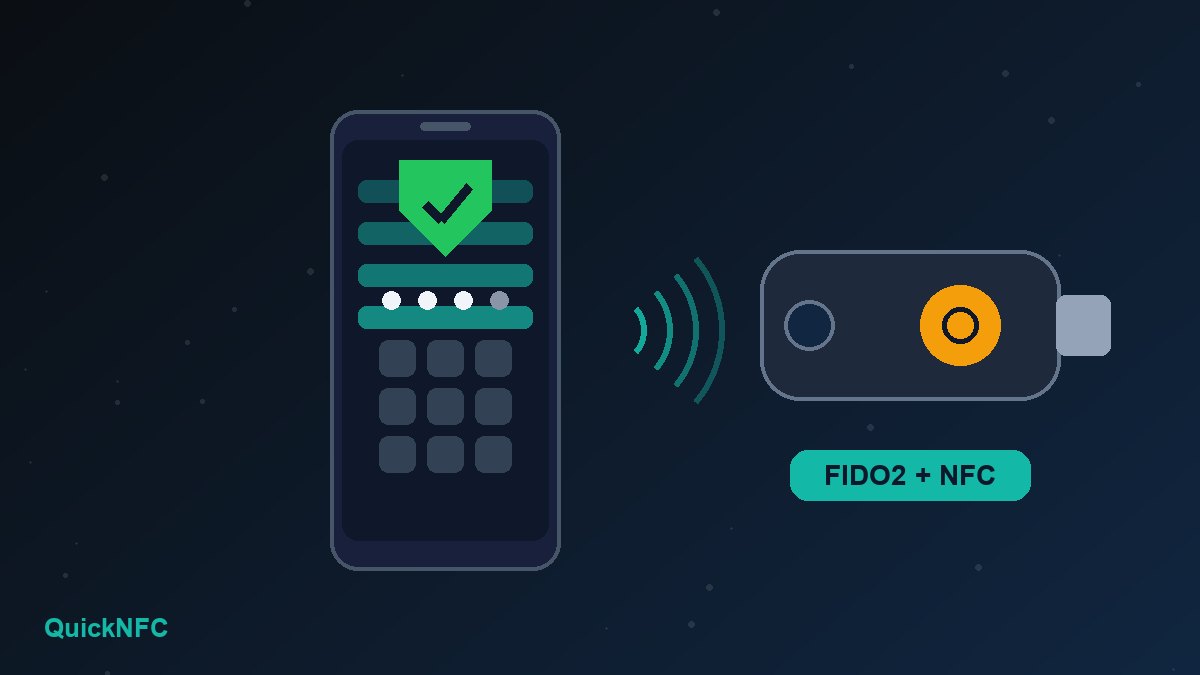
Short answer: Yes, you can now tap an NFC security key such as a YubiKey against the back of an Android phone to create and use a passkey, not just to confirm a second step. Google added passkey support for NFC security keys that speak the FIDO2 (CTAP2) protocol to Google Play services, covering Android 9 and later, and Yubico followed with a free app, YubiKey Passkey Enabler, that makes the flow smoother on Android 14 and later. You need an NFC-capable FIDO2 key, NFC switched on, a PIN on the key, and a site or app that supports passkeys.
This guide explains what actually changed, which route to use on your phone, how to set it up step by step, and how to fix the usual "nothing happens when I tap" problem.
What changed: second factor vs passkey on a key
NFC security keys have worked with Android for years, but only in a limited way. Tapping a key to approve a Google sign-in after typing your password is the second factor role, and Google's own help page still describes that NFC flow. What did not work over NFC was the passkey role: storing a discoverable credential on the key itself and using it, with the key's PIN, to sign in without a password.
Yubico put it plainly in its July 2026 announcement: Android has offered general NFC support for years, but passkey enrollment and authentication over NFC "were unsupported" until Google's Play services update. Yubico says that update allows authentication through NFC security keys that support CTAP2 on every Android version from Android 9 onward.
Why it matters: a passkey on a hardware key never leaves the key. It is not synced to a cloud account, and it only works on the real website it was created for, which is what makes passkeys resistant to phishing. If you want the background on how the short-range radio link works, our explainer on what NFC is and how it works covers it.
What you need before you start
- An NFC-capable FIDO2 key. On Yubico's range that means the NFC models of the YubiKey 5 Series or the Security Key Series. Yubico's app also supports the YubiKey Bio Series, but over USB, since those keys have no NFC. Google notes that any FIDO1 or FIDO2 key works as a second step, but only FIDO2 keys can hold a passkey.
- An Android phone with NFC. Search "NFC" in Settings; if a connection setting appears, your phone has a reader. On Pixel phones it is under Settings > Connected devices > Connection preferences > NFC.
- Up-to-date Google Play services (for the built-in route) or Android 14 or later (for the Yubico app).
- A PIN on the key. If the key has none, you will be asked to create one the first time you save a passkey to it. Pick one you will remember: Yubico warns that the only way past a forgotten PIN is a reset, which wipes every passkey on the key.
- A site or app that supports passkeys or security keys. Look for "passkey", "security key" or "FIDO2" in its security settings.
Route 1: the built-in Android flow
If you only need your key for a handful of accounts, start with what is already on the phone.
- Update Google Play services and Chrome.
- Turn NFC on.
- In Chrome, open the account's security page and choose to add a passkey or a security key.
- When Android asks where to save the passkey, choose the option to use a security key or another device instead of your phone's password manager.
- Hold the key flat against the back of the phone until the prompt asks for your PIN, enter it, and tap again if asked.
Two Google-specific details are worth knowing. First, Google says that if your FIDO2 key was added to your account before May 2023, you may need to remove it and add it again before you can create a passkey on it. Second, you may have to wait 7 days before a newly added key is offered at sign-in; Google uses that delay to protect accounts against someone adding a key without permission.
Route 2: YubiKey Passkey Enabler (Android 14+)
Yubico's app plugs into Android's Credential Manager as a passkey provider, the same slot a password manager uses. It is free on Google Play, needs no internet connection, and according to its Play listing collects no data. What it adds over the built-in flow:
- Antenna hints that show where the NFC reader sits on your model, if the phone reports it.
- "Always ask for PIN", which asks for the PIN before you tap, so an NFC sign-in needs one tap instead of two.
- PIN creation and changes over NFC or USB, with the key's length and complexity rules shown on screen and remaining retries counted.
- Fingerprint prompts for Bio keys, and settings that IT teams can push through device management.
Set it up
- Install YubiKey Passkey Enabler from Google Play and open it.
- Tap Enable in settings. In Android's passkey settings, either switch on Yubico under additional services or make it the preferred service. You can set your old password manager back as an additional service later.
- Return to the app and check for the green Passkey service enabled message. If it says NFC is disabled, tap Enable NFC.
- Optional: switch on Always ask for PIN for one-tap sign-ins.
Create and use a passkey
- Start passkey creation on the site or app. Yubico lists Chrome, Firefox, Edge and Samsung Internet among the apps it has tested.
- In the Credential Manager sheet, pick Yubico (tap Save another way if it is not the default) and press Continue.
- Hold the key on the back of the phone near the antenna, enter or create the PIN, and keep the key still until the prompt finishes.
- Next time you sign in, choose the passkey, pick Yubico if asked, and tap the key again.
Reviews on the Play listing are mostly positive, though one reviewer reports the app does not always appear as a save option on some sites while signing in works fine. If that happens, try the built-in route for that site or create the passkey over USB.
Watch a full passkey setup
When you tap and nothing happens
Most failures are the same physical problems that affect any NFC tag, which our guide to fixing NFC on Android covers in more depth. For security keys specifically:
- Wrong spot. The antenna is often near the centre or upper half of the back, but it varies by model. Slide the key slowly rather than tapping and pulling away.
- Too quick. A FIDO2 exchange takes longer than reading a sticker. Hold the key still until the prompt changes.
- Case or metal. Thick cases, card wallets, metal plates and magnetic rings can block the field. Google's own checklist says to remove anything that might block the signal.
- Old Play services. Update it, restart the phone, and toggle NFC off and on, as Google suggests.
- "Register this key first" errors. The key is not on that account yet. Google suggests updating Play services and signing in again.
- Locked PIN. Too many wrong PINs locks the key's FIDO2 function. A reset fixes it but deletes every passkey on the key, so re-register it everywhere afterwards.
Is a hardware passkey worth it?
For most people, a passkey saved in the phone's password manager is already a big step up from passwords. A key makes most sense for accounts where a takeover would really hurt: your main email, business admin panels, domain and payment accounts. The trade-offs are simple. The key is something you can lose, and it does not sync, so register two keys on every important account and keep one at home. Keep at least one recovery method, such as backup codes, on each account, and do not stack every login onto a single key.
The good news for NFC users is that the same tap habit you use for tags and contactless business cards now covers sign-ins too. If you also own an iPhone, our iPhone vs Android NFC guide explains how the two platforms differ for everyday tap tasks.
FAQ
Is a security key passkey the same as a Google Password Manager passkey?
Both use the same standard, but a key-based passkey lives only on the key and works on any device you can connect the key to. A password-manager passkey is synced across your signed-in devices.
Do I need the Yubico app?
No. Google's Play services update handles NFC passkeys on Android 9 and later. The app is optional and adds antenna hints, one-tap PIN entry and PIN management, but it needs Android 14 or later.
Will a non-Yubico key work?
Google's support covers NFC keys that implement FIDO2 (CTAP2). Yubico says other vendors' keys may work with its app, but it does not guarantee full compatibility.
What happens if I lose the key?
Its passkeys go with it. Sign in with your backup key or another recovery method, then remove the lost key from each account's security settings.
Sources
- Yubico: Google Play Services adds support for NFC-enabled FIDO2 security keys (1 July 2026)
- Yubico docs: YubiKey Passkey Enabler platforms and requirements
- Yubico docs: YubiKey Passkey Enabler configuration
- Yubico docs: Using the YubiKey Passkey Enabler app
- Google Account Help: Use a security key for 2-Step Verification (Android)
- Google Play: YubiKey Passkey Enabler

QuickNFC Editorial DeskQuickNFC publishes practical, plain-English NFC guides. Spotted an error or something out of date? Tell us.